Best Free Fire MAX Settings for Low-End Android Phones (2026) – Lag-Free Gameplay Guide
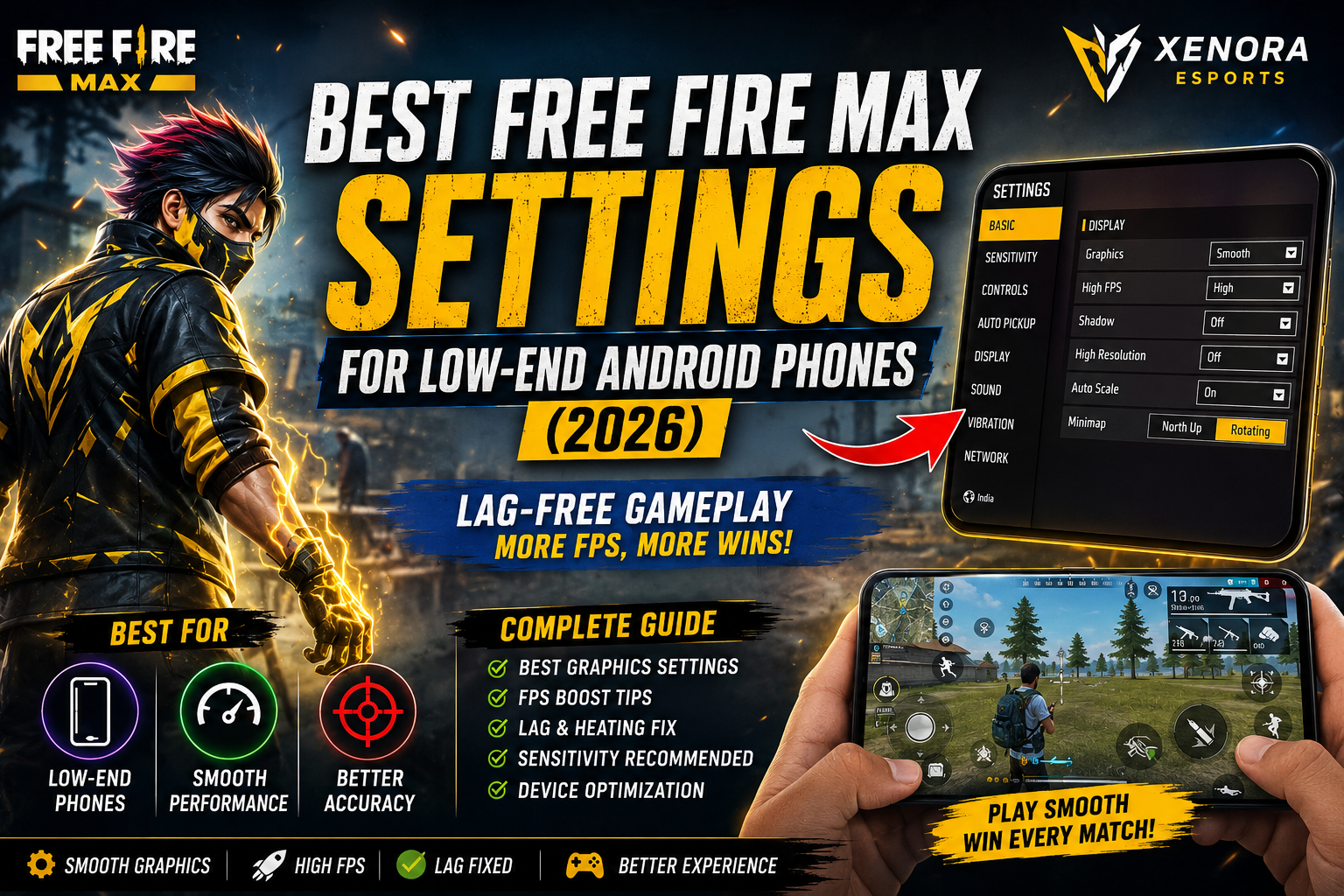
Best Free Fire MAX Settings for Low-End Android Phones (2026) – Lag-Free Gameplay Guide
Free Fire MAX is one of the most popular battle royale games, but not every player owns a flagship smartphone. Many gamers play on budget Android devices with 2GB, 3GB, 4GB, or 6GB RAM, where lag, frame drops, overheating, and slow touch response can ruin the gaming experience.
The good news is that you don't need an expensive phone to enjoy smooth gameplay. By adjusting the right graphics settings, sensitivity, frame rate, and device optimizations, you can significantly improve performance and reduce lag.
In this complete 2026 guide, you'll learn the best Free Fire MAX settings for low-end Android phones, along with practical tips to increase FPS, reduce overheating, and enjoy a smoother gaming experience.
Why Free Fire MAX Lags on Low-End Phones
Before changing settings, it's important to understand why the game lags. Most budget smartphones have limited RAM, slower processors, and weaker GPUs, making it difficult to render high-quality graphics while maintaining stable FPS.
Common Reasons for Lag
- Low RAM availability.
- Background applications consuming memory.
- High graphics settings.
- Low storage space.
- Device overheating.
- Unstable internet connection.
- Outdated Android version.
Identifying these problems allows you to optimize your device more effectively.
Best Graphics Settings
Graphics settings have the biggest impact on FPS. Running the game on Ultra graphics may look beautiful, but it often causes lag on low-end phones.
| Setting | Recommended |
|---|---|
| Graphics | Smooth |
| High Resolution | Off |
| Shadow | Off |
| Auto Scale | On |
| High FPS | High (If Supported) |
These settings reduce GPU load and improve frame stability during matches.
Enable High FPS Mode
If your smartphone supports High FPS mode, always enable it. A higher frame rate provides smoother movement, faster reaction time, and better aiming accuracy.
Benefits of High FPS
- Smoother gameplay.
- Better touch response.
- Improved recoil control.
- More accurate headshots.
- Reduced input delay.
If High FPS causes overheating, switch back to the Standard frame rate for longer gaming sessions.
Best Sensitivity Settings for Low-End Phones
Low-end devices often have different touch responses compared to flagship phones. Slightly higher sensitivity can make aiming easier.
| Setting | Recommended Value |
|---|---|
| General | 195 |
| Red Dot | 185 |
| 2X Scope | 175 |
| 4X Scope | 160 |
| Sniper Scope | 80 |
| Free Look | 70 |
Use these settings as a starting point and adjust them according to your device's touch response.
Free Up RAM Before Playing
One of the easiest ways to improve performance is to free up RAM before launching the game.
Quick RAM Optimization Tips
- Close all background apps.
- Disable automatic updates while gaming.
- Restart your phone before long sessions.
- Turn off unnecessary notifications.
- Clear recent applications.
Even 500MB of additional free RAM can noticeably improve performance on budget devices.
Use Game Mode
Many Android phones include a built-in Game Mode that blocks notifications, improves CPU performance, and optimizes memory usage.
If your device supports Game Mode, enable it before every Free Fire MAX match for the best experience.
Continue reading below to discover advanced FPS boost techniques, overheating fixes, storage optimization, internet settings, and professional performance tips for low-end Android devices.
Optimize Your Phone Storage
Storage space plays an important role in gaming performance. When your phone's internal storage is almost full, Android struggles to manage temporary files, resulting in slower app performance and occasional lag during gameplay.
Keeping enough free storage allows Free Fire MAX to load textures, maps, and game assets much faster.
Storage Optimization Tips
- Keep at least 8–10GB of free storage.
- Delete unnecessary videos and screenshots.
- Clear cache files regularly.
- Remove unused applications.
- Avoid filling internal storage above 85%.
Reduce Ping for Better Gameplay
Even if your phone performs well, high internet latency can cause delays, teleporting enemies, and slow hit registration. Stable internet is just as important as powerful hardware.
Best Ping Optimization Tips
- Use a stable Wi-Fi connection whenever possible.
- Restart your router regularly.
- Avoid downloading large files while gaming.
- Close apps using the internet in the background.
- Play close to your Wi-Fi router.
- If using mobile data, ensure strong 4G or 5G coverage.
Maintaining a stable connection provides smoother gameplay and faster reactions during competitive matches.
Fix Overheating Problems
Overheating is one of the biggest reasons for FPS drops on low-end smartphones. As the device temperature increases, Android automatically reduces CPU and GPU performance to protect the hardware.
How to Reduce Heating
- Remove thick phone covers while gaming.
- Avoid charging your phone during gameplay.
- Play in a cool environment.
- Lower brightness to around 50–60%.
- Take short breaks after long gaming sessions.
- Close unnecessary applications before launching the game.
Keeping your device cool helps maintain stable frame rates throughout the match.
Battery Optimization Tips
Battery-saving features often limit processor performance, which can reduce FPS during gameplay.
| Setting | Recommendation |
|---|---|
| Battery Saver | Off |
| Adaptive Battery | On |
| Performance Mode | High Performance (If Available) |
| Power Saving | Disabled While Gaming |
Always disable battery saver before playing Free Fire MAX for the best gaming performance.
Enable Game Booster Features
Many smartphone brands include dedicated gaming tools that optimize CPU usage, RAM allocation, and touch response.
Popular Gaming Modes
- Samsung Game Booster
- Xiaomi Game Turbo
- Realme Game Space
- OPPO Game Assistant
- OnePlus HyperBoost
- ASUS Game Genie
If your smartphone supports these features, enable them before every gaming session.
Adjust Android Display Settings
Your display settings also affect gaming performance. Lower brightness and higher refresh rates improve the overall experience.
- Enable 90Hz or 120Hz refresh rate if supported.
- Disable automatic brightness during gameplay.
- Reduce screen timeout interruptions.
- Use full-screen gestures carefully if they interfere with controls.
Keep Free Fire MAX Updated
Garena frequently releases updates that improve game optimization and fix performance issues. Running an outdated version may reduce stability.
- Install updates from the Google Play Store.
- Restart the phone after updating.
- Clear game cache after major updates.
Using the latest version ensures better compatibility and smoother gameplay.
Continue reading below to discover advanced Developer Options, professional FPS boost tricks, best settings for 2GB/4GB/6GB RAM devices, and expert optimization techniques used by experienced players.
Best Free Fire MAX Settings Based on Your Phone RAM
Every Android smartphone performs differently depending on its processor, RAM, and GPU. Using the same graphics settings on every device can reduce performance. Below are the recommended settings based on your phone's RAM.
2GB RAM Devices
- Graphics: Smooth
- High FPS: Off
- Shadow: Off
- High Resolution: Off
- Auto Scale: On
- Close all background applications.
Devices with 2GB RAM should prioritize stability over visual quality.
3GB–4GB RAM Devices
- Graphics: Smooth
- High FPS: High
- Shadow: Off
- High Resolution: Off
- Brightness: 50%
- Enable Game Mode.
This configuration provides a balance between smooth gameplay and battery life.
6GB RAM Devices
- Graphics: Standard
- High FPS: High
- Shadow: Low
- High Resolution: Off
- Enable Performance Mode.
- Keep background apps closed.
Most 6GB RAM smartphones can maintain stable FPS with these settings.
8GB RAM and Above
- Graphics: Ultra
- High FPS: Ultra
- Shadow: On
- High Resolution: On
- Performance Mode Enabled.
High-end devices can enjoy better graphics while maintaining smooth gameplay.
Developer Options That Can Improve Performance
Android Developer Options include several settings that may help improve responsiveness. Be careful and avoid changing options you don't understand.
Recommended Settings
- Window Animation Scale → 0.5x
- Transition Animation Scale → 0.5x
- Animator Duration Scale → 0.5x
- Disable unnecessary background processes.
- Enable Hardware Accelerated Rendering (if available).
Reducing animation scales makes the phone feel more responsive, although it won't increase the game's actual FPS.
Improve Touch Response
Fast touch response is important for drag headshots, movement, and recoil control.
- Clean your screen before playing.
- Use a quality screen protector.
- Keep your hands dry.
- Avoid playing while the phone is overheating.
- Use Game Mode touch optimization if supported.
Advanced FPS Boost Tips
These tips are commonly followed by experienced Free Fire MAX players who want stable performance during long gaming sessions.
- Restart your phone before tournaments.
- Play after clearing RAM.
- Disable Bluetooth if not required.
- Disable GPS while gaming.
- Use Airplane Mode with Wi-Fi enabled if you're playing over Wi-Fi.
- Keep battery level above 40%.
- Avoid multitasking during matches.
Common Performance Mistakes
Many players unknowingly reduce their phone's performance by making simple mistakes.
- Keeping storage almost full.
- Running too many apps in the background.
- Using Ultra graphics on budget phones.
- Ignoring software updates.
- Playing while charging.
- Using unstable mobile data.
- Never restarting the phone.
Avoiding these mistakes alone can noticeably improve gameplay on low-end devices.
Pro Optimization Checklist
| Task | Status |
|---|---|
| Clear RAM | ✔ |
| Close Background Apps | ✔ |
| Enable Game Mode | ✔ |
| Use Smooth Graphics | ✔ |
| Enable High FPS (If Supported) | ✔ |
| Stable Internet Connection | ✔ |
| Enough Free Storage | ✔ |
Continue reading below for the final FAQ section, expert recommendations, conclusion, and Xenora Esports performance checklist.
Frequently Asked Questions (FAQs)
1. Which graphics setting is best for low-end Android phones?
For most budget smartphones, the Smooth graphics setting provides the best balance between visual quality and performance. It reduces GPU load and helps maintain stable FPS during gameplay.
2. How can I increase FPS in Free Fire MAX?
You can improve FPS by enabling High FPS mode (if supported), closing background apps, using Game Mode, keeping enough free storage, and lowering graphics settings.
3. Does Game Mode really improve performance?
Yes. Most modern Android phones include Game Mode features that optimize CPU usage, RAM allocation, touch response, and notification management for a smoother gaming experience.
4. Why does my phone overheat while playing Free Fire MAX?
Overheating usually occurs due to high graphics settings, extended gaming sessions, charging while playing, or poor ventilation. Lowering graphics and taking short breaks can help reduce heat.
5. Is High FPS mode safe for my phone?
Yes, if your device officially supports it. However, if you notice excessive heating or battery drain, switching back to the Standard frame rate may provide a better overall experience.
6. How much free storage should I keep?
For smooth gaming performance, it's recommended to maintain at least 8–10GB of free internal storage. This allows Android to manage temporary files more efficiently.
7. Can Developer Options improve gaming?
Developer Options can make your phone feel more responsive by reducing animation scales. However, they do not magically increase your hardware performance or FPS.
8. Should I play while charging?
No. Charging while gaming generates extra heat, which can lead to thermal throttling and lower FPS. It's better to fully charge your phone before playing.
9. What internet speed is recommended for Free Fire MAX?
A stable connection with low latency is more important than extremely high download speeds. Wi-Fi or a strong 4G/5G network generally provides the best gaming experience.
10. Where can I test these optimized settings?
After applying these settings, you can join tournaments and custom rooms on Xenora Esports to test your performance against real players and improve your competitive skills.
Performance Optimization Checklist
- ✔ Keep at least 8–10GB of free storage.
- ✔ Close unnecessary background applications.
- ✔ Enable Game Mode.
- ✔ Use Smooth Graphics on low-end phones.
- ✔ Turn on High FPS if your device supports it.
- ✔ Disable Battery Saver while gaming.
- ✔ Play on a stable Wi-Fi or 4G/5G connection.
- ✔ Restart your phone before important matches.
- ✔ Avoid playing while charging.
- ✔ Update Free Fire MAX regularly.
Final Thoughts
Owning a budget Android phone doesn't mean you can't enjoy Free Fire MAX. By using optimized graphics settings, managing your storage, enabling Game Mode, and maintaining a stable internet connection, you can achieve a much smoother gaming experience.
Remember that skill, strategy, and consistency matter far more than expensive hardware. Focus on improving your aim, movement, communication, and decision-making while keeping your device optimized for the best possible performance.
Apply these settings, practice regularly, and you'll notice a significant improvement in both ranked matches and tournament gameplay.
Take Your Skills to the Next Level with Xenora Esports
Once your device is optimized, it's time to challenge yourself against real competition. Join exciting Xenora Esports tournaments, compete with players from across India, sharpen your skills, and experience the thrill of competitive Free Fire MAX.
Whether you're a beginner looking to improve or an experienced player aiming for the top, Xenora Esports provides a platform to grow and compete.
Optimize your device, build your squad, and start your esports journey today!
Related Guides
- Free Fire MAX Tournament Guide 2026
- Top 15 Free Fire MAX Tips & Tricks
- Best Free Fire MAX Characters in 2026
- Best Sensitivity Settings for Headshots
- How to Push Heroic Rank Faster
About Xenora Esports
Xenora Esports is your destination for Free Fire MAX tournaments, gaming guides, esports news, and competitive strategies. We help players improve through detailed tutorials, tournament updates, and performance-focused content designed for gamers of all skill levels.
© 2026 Xenora Esports. All Rights Reserved.
Tags
Rahul
Gaming expert sharing Free Fire pro tips and strategies.
Related Articles
Comments (0)
Search
Categories
Popular Posts
Best Free Fire Characters in 2026: Complete Tier List
9,188
Free Fire Game Modes Explained 2026: Which Mode to Play?
3,939
Free Fire Pro Strategies 2026: Advanced Tactics to Dominate Every Match
3,217
Free Fire Booyah Pass Season 50: Rewards & Is It Worth It?
2,774
Best Landing Spots in Free Fire 2026: Loot & Survival Guide
2,738Newsletter
Get Free Fire tips in your inbox!
No comments yet. Be the first to comment!